
Animating DragonBall Daima Piccolo

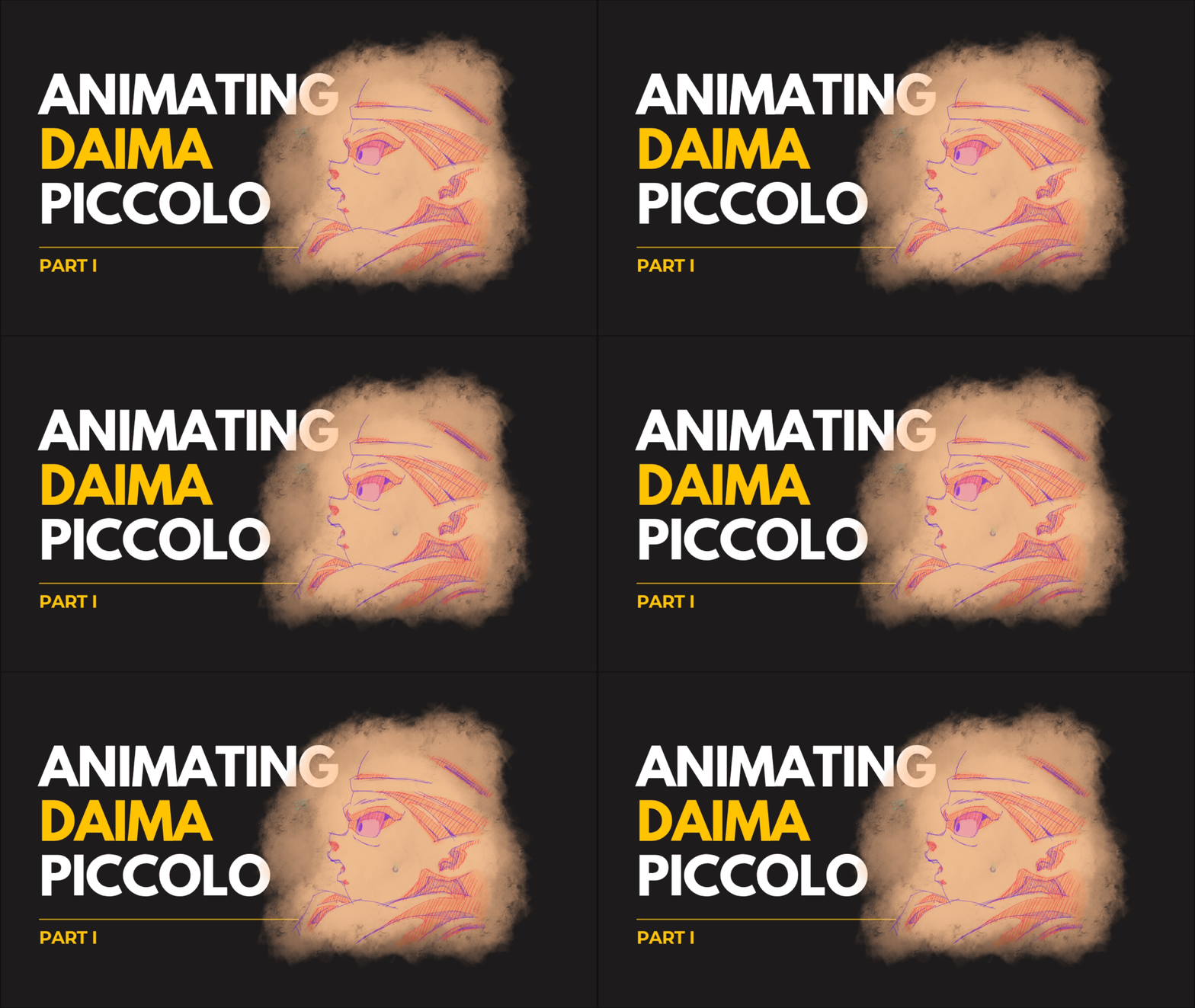
I recently posted a short on YouTube. It’s a little “animation” of Dragon Ball Daima Piccolo.
Animating DragonBall Daima Piccolo is a bit of show off here, i have to admit.
But the title sounds cool and it’s a perfect hook to introduce you to some practice on how to animate your drawing. Or your sketch.
Call it as you please, though the matter of fact is that animation is a set of following drawings.
Basically, if you can draw, you can animate in 2D.
3D animation is clearly a sibling but this let’s keep it for later and focus on what we have here.
My main tool is an Android Tablet
I use an Android Tablet dedicated to my art creations.
XP PEN MAGiC DRAWiNG PAD to be exact.
Very useful and handy!
I love the fact that i can draft my ideas with it and clean them later on.
So keep the record straight, my main tool is an Android Tablet.
Not a PC. Not a laptop. Not an apple product. Not a phone (how do guys do that!?! 🤯 )
A simple Android Tablet.
So if you are an Android Tablet owner and you are eager to learn animation with it, you are in the right space!
The apps used: Sketchbook & RoughAnimator
For the little story, i sketched that Daima Piccolo Fanart at around the time Dragon Ball Daima episode 04 first aired. The original Japanese version with subtitles.
Then, i lost it somehow..
Then, i recently recovered it. Somehow. LOL.
How to use the Sketchbook app for fanarts animation
I use the Sketchbook app for my fanarts. I love the brushes and the other tools it offers. The free version is enough but the premium is affordable so i bought it. It’s a one-time purchase.
And for animation, I go with the RoughAnimator app. Same, very handy and well thought application by an Animator for Animators. For this one, there’s only the paid version but it’s also an affordable one-time payment, so i bought it.
I am definitely going to talk about it later, because each one was under £10/€10/$10.

Now let’s get back to that Daima Piccolo fan art!
I remember, when i sketched Piccolo from Dragonball Daima, it was the same week i found out that the Sketchbook PC version has the option of ANiMATiON.
That pissed me off!
I mean.. why not the android version too ? ? ? [ hurgghhh!! ]
So with that rage energy, I decided to animate on Sketchbook app anyway.
This is how to use the Sketchbook app for fanarts animation.
Here we will take the Piccolo fanart and base the steps on it.
It is tailored for an eye blink animation.
Step 01: Draw your fanart
Do your fanart up until you are satisfied with your outlines.
Do not color it yet. Stop at that stage.
As long as the artlines satisfy you, you are good to go to the next step.

Step 02: Draw the keyframes
This topic will be developped later on.
In very short, keyframes are the different poses that need to appear on the timeline in order to produce animation.
A pose is an iteration drawing from your main drawing that conveys a part of a motion.
For this fanart animation, you need to draw the keyframes that are necessary to make the eye blink animation.

In 2D animation, you can make an eye blink animation with as few as 4 or 5 frames.
For that Piccolo Daima fan art, i made 7.
In Animation, observation is key!
Be observant, if you want your anim to be relatable go for a quick study.
Find some eye blinking references and/or record yourself blinking out of be surprised by something, since it’s the case for Piccolo.
You will find that your eyebrows muscles move as well ( i don’t know the exact name of it, but Google is your friend! )
So I decided to animate that part of Piccolo’s face as well.
You can as well animate the upper cheek part that usually slightly move with the lower eyelid.
I simply decided not to. It’s a fan art animation, you are free to enjoy whatever you feel good to enjoy!
Always, keep in mind that in animation, observation is key!
Here, you can observe the frames I drew as a guide to help you go through the animation, step by step:

2D Animation hack: Focus only on the part of the face that is moving.
Only redraw that part. Think smarter 😉

Now that you have all your keyframes poses, your eye blink animation is done!

In order to get your base animation, you need to open RoughAnimator, import your images in it, in one bunch. Then export that as gif or mp4.
Voilà !
Step 03: GENGA [ 原画 ]

That’s where the real work begins!
Short explanation: Genga [ 原画 ] is a Japanese term from the anime industry used to designate the animation guides for the shadowing of each drawing or keyframes.
That topic is also meant to be developped later on.
I personally find that step visually interesting and it earns to be studied as well.
So i use that step to place the shadows on my character for my sketch arts even though they are not animated.
And that’s what you are going to do for your main drawing and each of its iterations meant for animation.
Once you are done, export each drawing as PNG.
Open the Rough Animator app, and import your images in the timeline, then tweak a little bit the timing of each frame so that you can get a glimpse of what your animation might looks like once finished.
TADAM! Here you are:

Congratulations!! 🎉
You made it to the end and your animation looks great already !! 😃👌🏾
You showed dedication, patience and consistency which is very rare nowadays.
Enjoy your achievement and get ready for part 2 !
Any questions ? Let’s chat in the comments section !
________
Sources links:
• Android Tablet:
XP Pen Magic Drawing Pad • https://www.xp-pen.com/store/buy/magic-drawing-pad.html
• Animation & Drawing apps:
Sketchbook App • https://www.sketchbook.com/apps
RoughAnimator • https://www.roughanimator.com/
• Genga:
Genga.net • https://en.genga.net/
Sakuga Fandom • https://sakuga.fandom.com/wiki/Genga
________
